PDF to Word
A PDF does not contain paragraphs, only characters with a position on the page. This page reads those positions back and works out the paragraphs, the headings and the reading order again. That works well on an ordinary single-column document and badly on anything laid out as a grid. After every run it tells you which of the two you had.
Going the other way? Word to PDF turns a .docx back into a PDF. If the PDF is a scan with no text in it, turn the pages into images with PDF to JPG and read them with Image to Text. Comparing options? See the best free PDF to Word converters and their limits.
- No account
- No watermark
- No file limit
Your files
Best on ordinary single-column documents. Tables, multi-column pages and anything drawn as a diagram do not survive intact. The notes after the run say what happened to yours.
Scanned pages — the ones with no text in them — are read by OCR instead. What you get back is plain text: no headings, no bold. Handwriting does not come out. The first page takes a few seconds.
Off by default, so a paragraph split across two PDF pages is joined back together. Turn it on if the Word file has to paginate like the PDF.
Nothing chosen yet.
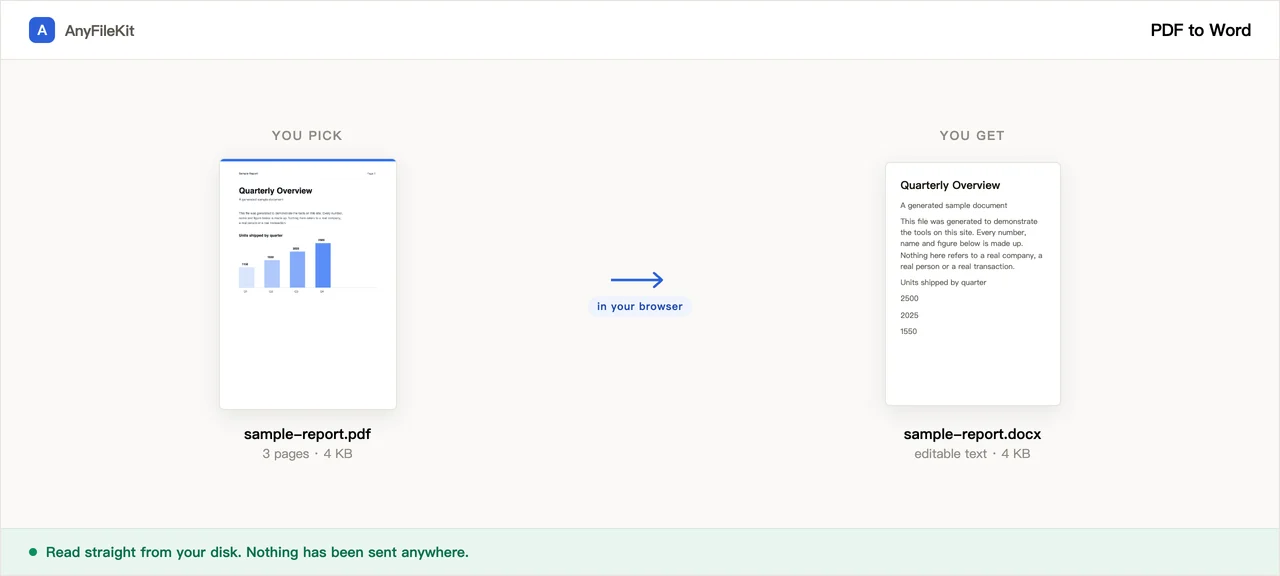
What this tool does for you
The parts worth knowing before you start.
Paragraphs, not one line each
A PDF records printed lines, not paragraphs. This one joins the lines back up, including words split across a line with a hyphen, and starts a new paragraph only where the spacing, the indent, the font size or the boldness changes.
Headings become Word headings
Text set larger than the body is ranked by size and mapped to Heading 1, 2 and 3, so the navigation pane fills in and Insert → Table of Contents works. Bold and italic come from the font each run of characters was drawn with.
Running headers and page numbers are dropped
Lines sitting in the top or bottom margin that repeat across half the document, and bare page numbers, are removed. The number removed is reported.
It reports where it failed
Multi-column pages, table-like rows, pictures it could not cut out, sideways text and pages with no text at all are each counted and explained under the download button.
How to use PDF to Word
Choose one or more PDFs. If any of them are scans, tick the OCR box and pick the language they are in before you start.
Press Start. Every page is read twice, so a long document takes a while.
Download the .docx, then read the notes under the button. They say what did not survive.
When people use it
You need to edit two paragraphs of someone else’s PDF
Reusing a supplier’s terms, a clause from a contract, a section of a report.
Getting the words out without retyping them
A proposal, an article or a manual that only exists as a PDF, and the body text has to end up somewhere you can work on it.
The file cannot go to a stranger’s server
Contracts, medical letters, payslips, anything under an NDA. The PDF is read on your own machine and nothing is sent.
Questions about PDF to Word
Will the Word file look like the PDF?
No. It puts the text back in reading order using Word’s own styles, on a page the same size as the original with margins taken from where the text actually sits. Line breaks, exact fonts, letter spacing, columns and anything drawn as vector art are not reproduced.
What happens to tables?
They do not come out as Word tables. When a line has wide gaps inside it, those gaps become tab characters and the line becomes its own paragraph, so the data is all there and in the right order. To get a real table back, select those lines in Word and use Insert → Table → Convert Text to Table with Tabs as the separator. The report says how many lines came out that way.
What about two-column pages?
Each column is read top to bottom in turn, and it is reported so you can check. Three columns work the same way. What breaks it is a page where the columns start and stop halfway down, or a sidebar that overlaps the main text; those come out interleaved.
My PDF is a scan and the Word file is empty.
A scanned page has no characters in it to read. Tick “Read scanned pages with OCR”, say which language your scan is in, and those pages get recognised instead. It reads one language at a time, so the wrong pick comes back as nonsense. It takes several seconds a page, and what comes back is plain text with no headings and no bold.
Are bold and italic reliable?
They come from the font each run of characters was drawn with, so they are right whenever the document used a real bold or italic font. They are wrong when a PDF faked bold by drawing each outline twice, and they can be wrong for a slanted regular font. Underline, text colour and highlighting are not carried over.
Can I convert several files at once?
Yes. Each PDF becomes its own .docx. Two or more arrive as a single zip. A PDF over 2 GB cannot be opened at all; that is the browser’s limit.
Is my file uploaded?
No. The PDF is read off your disk by this page, the Word file is assembled in the tab, and the download comes out of your own browser. You can watch the network tab while it runs. The PDF reader and the OCR engine are downloaded from this site the first time; your document is not part of that.
Other tools
Compress Image
Make photos smaller without the upload
Reduce PDF File Size
Shrink a PDF without uploading it
Compress Video
Make a video file smaller
Crop Video
Drag a box over the picture and keep only that part
Video to GIF
Turn part of a video into an animated GIF
Combine PDF Free
Join several PDFs into one
PDF Splitter
Pull pages out of a PDF
PDF to JPG
Turn every page of a PDF into an image
Audio Trimmer
Trim an audio file
Video Cutter
Trim a video without re-encoding it
Crop Image
Drag a box over it, then rotate if it needs it
Merge Images
Put several pictures into one file
HEIC to JPG
Convert iPhone photos to JPG
JPG to PDF
Turn JPG and PNG images into one PDF
Video to MP3
Pull the audio out of a video
Word to PDF
Turn a .docx into a PDF, or one PDF per page
Markdown to Word
Turn a .md file into a .docx
Markdown to PowerPoint
Turn a Markdown outline into slides
HTML to Image
Turn an HTML file into one long PNG
Image to Text
Read the text out of a picture
Split Excel Sheets
One sheet, one file
Split Excel Rows
One row per file, or every N rows